Trading shares no longer means calling a dealer or sitting at a computer. With a mobile trading app, you can check prices, place orders and track your trades from your phone. The eClear NxG app, provided by EClear Services Limited, offers PSX stock rates, order placement and trade summaries.
This guide explains what the eClear NxG app does, how to get started, how to place your first order and how to keep your account safe. If you are brand new to the market, read it together with our guide on How to Open a PSX Trading Account Online in Pakistan (Step-by-Step Guide).
Menus and features can change when the app is updated, so the exact screens on your phone may look slightly different from the steps below.
What is the eClear NxG app?
eClear NxG is a mobile stock trading app for the PSX. Its App Store listing describes stock-rate, order-placement and trade-summary features. The iPhone app is free to download. At the time of this review, the listing requires iOS 15.6 or later; check the listing for the latest compatibility requirements.
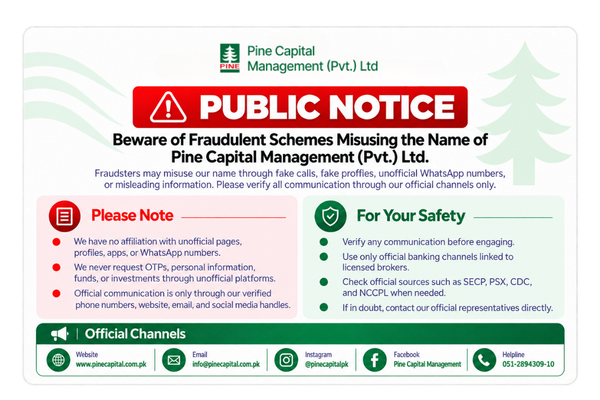
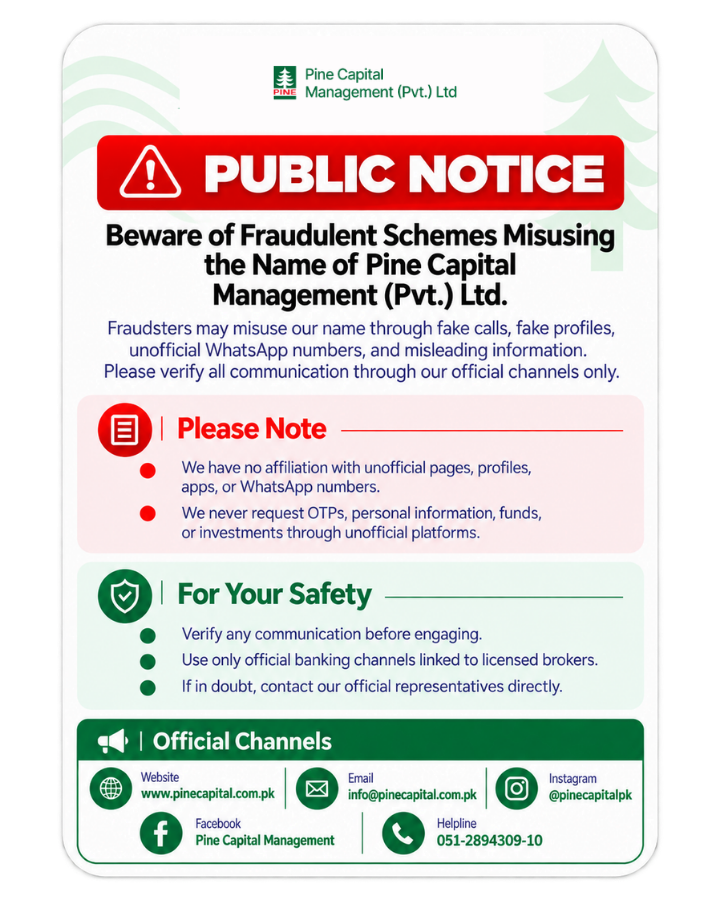
For live PSX trading, use the app and account details confirmed by your broker. App availability, branding and enabled features may differ between brokers and versions. Confirm the correct app with Pine Capital before entering your trading credentials.
What you need before you start
Before you open the app, make sure you have:
- A trading account with a licensed broker. If you do not have one yet, you can open your account online with Pine Capital.
- Your login details. Your broker sends your username and password after your account is approved.
- For a cash trading account, sufficient available funds. Check your buying power and allow for brokerage commission and other applicable charges before placing an order.
- A smartphone and a stable internet connection. A slow connection can delay your orders.
Step 1: Download the app safely
Download the eClear NxG app only through the official store listing or a link confirmed by your broker. Check the developer name, EClear Services Limited. Do not install trading apps from unknown messages or groups. An official Google Play listing is available under the name Eclear Tick Next Generation; confirm with your broker which app and login to use for your account.
Step 2: Log in and secure your account
Open the app and enter the login details your broker gave you. Then:
- Change your temporary password to a strong one that you do not use anywhere else.
- Do not save passwords in shared devices. Log out when you finish on a phone that other people use.
- Never share your password or one-time codes. If anyone asks for them, stop and contact your broker through a verified channel.
Step 3: Explore the market screen
Once you are logged in, take a few minutes to look around before you trade. The main screens normally let you:
- See stock rates for PSX listed companies, including the latest price
- Search for a company by name or symbol
- Place orders to buy or sell
- View your trade summary to see what you have bought and sold
- Check whether your broker has enabled a fund-withdrawal request option; otherwise, ask your broker how to request a withdrawal.
Features can differ between versions, so open each menu and see what your version offers.
Step 4: Place your first buy order
Before you place a real order, decide which company you want to invest in and how much you can afford. Then:
- Find the share. Search by the company’s name or symbol and open its screen.
- Choose Buy.
- Enter the quantity. This is the number of shares you want to buy.
- Choose an available order type. A market order seeks execution at the best available price, which can differ from the last displayed price. A buy limit order sets the highest price you will pay, but execution is not guaranteed, even if your price is reached. Confirm which order types your broker enables.
- Check the summary carefully. Look at the company, quantity, price and total cost before you confirm.
- Confirm the order.
Check the order status after submitting it. Submission is not proof of execution: an order can remain pending, be partly filled, or be rejected. Confirm completed trades in the trade summary. Ask your broker how orders outside market hours are handled.
Step 5: Place a sell order
This guide covers selling shares you own. Choose the share, select Sell, enter the quantity and the available order type or price, and review the details before confirming. Check with your broker that the shares are available for sale and that settlement requirements are met.
For eligible PSX trades, the T+1 settlement cycle took effect on 9 February 2026. T+1 means settlement on the next settlement business day after the trade date. Confirm the settlement status of your trade with your broker.
Step 6: Check your trade summary
After using the eClear NxG app to submit an order, check the order status and, when a trade is executed, its trade summary. These records help you check:
- Which orders were completed
- The price and quantity of each trade
- Whether any orders remain pending, using the order-status view available in your version
Compare it with the contract note or statement your broker sends you, and tell your broker straight away if anything looks wrong.
Step 7: Withdraw funds
When you want to take money out, use the fund withdrawal option in the app, if your broker has enabled it, or contact your broker. Money is normally sent back to the bank account registered in your name. Check your broker’s rules on timing and any charges.
Safety tips for using the eClear NxG app
- Use a screen lock on your phone and keep your operating system updated.
- Avoid trading over public Wi-Fi. Use your mobile data or a trusted network instead.
- Check every order before confirming, especially the quantity and price.
- Do not trade while distracted. Small mistakes, such as an extra zero, can be expensive.
- Review your account regularly for anything you do not recognize.
- Report a lost phone or suspicious activity to your broker immediately.
Common problems and quick fixes
I cannot log in. Check your username and password and make sure you are using the right login for your broker. If you still cannot get in, contact your broker to reset your credentials.
The app is slow or freezing. Close and reopen it, check your internet connection and update the app to the latest version.
My order did not go through. Check whether you have enough funds, whether the market is open and whether your limit price was reachable. Your broker can help you confirm what happened.
I see an old version. Update the app from the official store listing.
Frequently asked questions
Is the eClear NxG app free?
The app is free to download. Your broker may charge commission and other fees on your trades.
Do I need a broker to use the app?
Yes. You must have a trading account with a broker that offers the app. You cannot trade without one.
Can I trade shares on my phone?
Yes. Once your account is active and funded, you can place buy and sell orders from the app.
Is mobile trading safe?
Mobile trading involves market risk as well as account-security and technical risks. Protect your login, use official download links and check order confirmations. These precautions do not prevent investment losses or guarantee uninterrupted access.
What is the difference between a market order and a limit order?
A market order seeks execution at the best available price and does not guarantee the price. A limit order sets an acceptable price or better, but does not guarantee execution.
Can I see my past trades?
Yes. Use the trade summary in the app and the statements your broker provides.
What if I make a mistake on an order?
Contact your broker straight away. Whether an order can be changed or cancelled depends on whether it has already been executed.
Start trading with Pine Capital
Pine Capital Management (Pvt.) Ltd., based in ISE Towers, Blue Area, Islamabad, helps investors open PSX accounts and trade through digital platforms. Open your account online or contact our team and we will help you get set up.
Risk disclosure: Investing in shares involves risk, including the possible loss of capital. Past performance does not guarantee future results. This article is for general information only and is not investment, tax or legal advice.